Thursday, November 17, 2011

HAST and ZFS

There’s a nice tutorial on using HAST (Highly Available STorage) with UFS and ucarp.  That’s very nice, but in my failover scenario I can’t use UFS; a fsck would take too long, and a background fsck would be most likely to lose the data I’m most likely to need.  And FreeBSD comes with a kernel-side CARP implementation; why would I use the userland implementation instead?  So: the tutorial is great, except it doesn’t do what I want.  I’ll attack this problem in two phases:  one, get HAST with ZFS running, and experiment with it.  Two, get CARP failover to trigger HAST failover automatically.  (I believe I can use devd for CARP-initiated failover, but I’ll need to do further research on that.  That’ll be another posting.)  Today I’m experimenting with HAST and ZFS. 
This is for a skunkworks project, so the machines are named “skunk1″ and “skunk2″.  Each has two network interfaces:  one facing the public and the other connected with a crossover cable to the other machine.  The public interface will provide public services and CARP failover, while the private interface is reserved for HAST and pfsync.  The machines each have two disk slices:  da0s1 has the operating system, while da0s2 is reserved for ZFS.
Both machines have an identical /etc/hast.conf:
resource mirror {
on skunk1 {
local /dev/da0s2
remote 192.168.0.2
}
on skunk2 {
local /dev/da0s2
remote 192.168.0.1
}
}
On both machines, I must create the HAST resource and start the HAST daemon.
skunk1# hastctl create mirror
skunk1# hastd
Tell one node that it’s primary on the resource “mirror”, and the other that it’s secondary.
skunk1# hastctl role primary mirror
skunk2# hastctl role secondary mirror
Be sure to set hastd_enable=YES in /etc/rc.conf so HAST starts after a reboot.  Your initial sync shouldn’t take long at all: there’s no data yet.  Use hastctl status to check your mirror.
skunk1# hastctl status mirror
mirror:
role: primary
provname: mirror
localpath: /dev/da0s2
extentsize: 2097152
keepdirty: 64
remoteaddr: 192.168.0.2
replication: memsync
status: complete
dirty: 17142120448 bytes
The “status” shows complete.  We’re good.
Now put a filesystem on that device.  On the primary node ONLY, create a zpool.
skunk1# zpool create failover /dev/hast/mirror
This creates a ZFS at /failover, on top of a HAST device.
To check my work, I reboot and check on my ZFS device:
skunk1# zfs list
no datasets available
skunk1# zpool list
NAME       SIZE   USED  AVAIL    CAP  HEALTH  ALTROOT
failover      -      -      -      -  FAULTED  -
skunk1#
Oh.  This isn’t good.  It turns out that the /dev/hast directory is missing.  skunk1 doesn’t know that it’s in charge.  I rerun “hastctl role primary mirror” and /dev/hast appears.  Once I tell skunk1′s HAST that it’s the primary and import the pool, my zfs appears.  Verify that your ZFS shows up in “df” output as a final confirmation, and copy some files to that partition.
To failover, I forcibly export the ZFS pool, switch the HAST roles, and forcibly import the ZFS on the backup machine.
skunk1# zpool export -f failover
skunk1# hastctl role secondary mirror
skunk2# hastctl role primary mirror
skunk2# zpool import -f failover
skunk2# df -h
Filesystem     Size    Used   Avail Capacity  Mounted on
failover        39G     55M     39G     0%    /failover
My /failover filesystem is now on the backup node.  My test files are on it.
Making something work under carefully controlled conditions is one thing:  what happens when things go bad?  For example, let’s reboot the backup node and make some changes on the primary node while the backup is rebooting.  Does the cluster recover?  During the secondary’s reboot, “hastctl status” on the primary reports “status: degraded”, which is what I’d expect.  Once the secondary comes up, I have to log in and run “hastctl role secondary mirror” before the synchronization begins.  Again, this is what I’d expect.
Now for a worse failure scenario.  I yank the power on the primary.  What happens?  Nothing.  I have to run “hastctl role primary mirror” for the secondary to pick up, and then run “zpool import -f failover” to get my ZFS to appear.  But the files are there.  And when I restore power to the old primary and tell it to be the secondary, everything works.
HAST with ZFS seems to be just fine.
In learning about HAST, I more than once got the error “Split-brain detected.”  This meant that I failed to consistently maintain one host as primary and one as secondary.  To fix this, run “hastctl create mirror” on the backup node.  This deletes and recreates the secondary HAST node.  The primary will then sync the data to the backup, from scratch.  For a 40GB pool, this took about 25 minutes.  Both hosts were running on VMWare, however, and writing to the same disk.  Be sure to test this with real hardware in your environment for realistic numbers.  The lesson here is:  don’t mirror anything larger than you must, because in case of trouble you must drag the whole image across the network to the other machine.

Wednesday, November 16, 2011

Memory Forensics: How to Pull Passwords from a Memory Dump


Last time, we talked about a quick and easy way to get a memory dump on a Windows based PC.
This time, we will cover pulling passwords out of captured memory files.
Several programs exist for memory analysis, we will be using “Volatility” from Volatile Systems. If you are performing your analysis on a Windows system I recommend downloading the stand alone .exe version. If you don’t then you will also need to install Python.
Once Volatility is installed, we need to get some information from the memory dump. Open up a command prompt and run the following command:
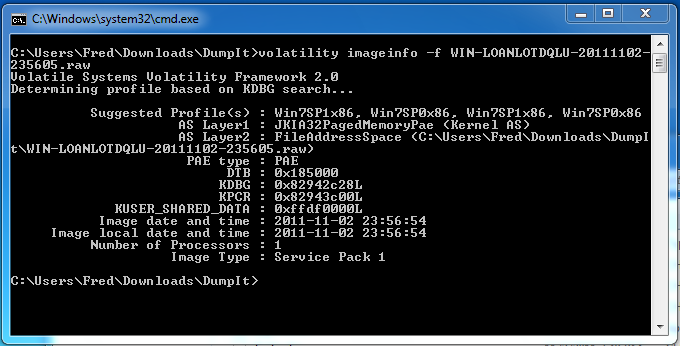
volatility imageinfo -f memorydumpfilename.raw (click image to enlarge)
image
This command gives you several pieces of information, for now, we just need to know the profile type of the memory dump, in this case Win7SP1x86. We will use this in the next few steps.
Now, we need the hive list so we can get the starting location in memory of where the registry information resides:
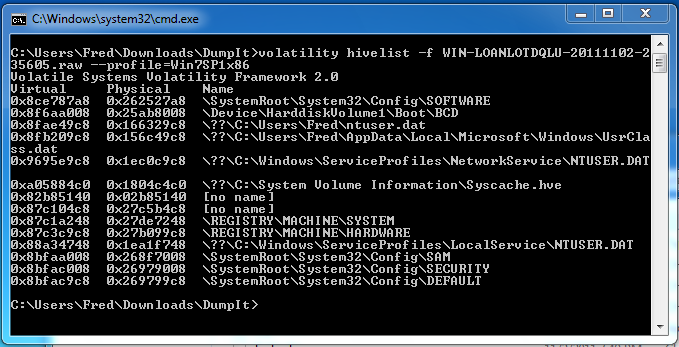
volatility hivelist -f memdumpfilename.raw –profile=Win7SP1x86 (Use double dashes in front of profile for some reason they are showing up as a single) (click image to enlarge)
image
We now have a list of where several key items are located in the memory dump. Next, we will extract the password hashes from the memory dump. To do this we need to know the starting memory locations for the system and sam keys.
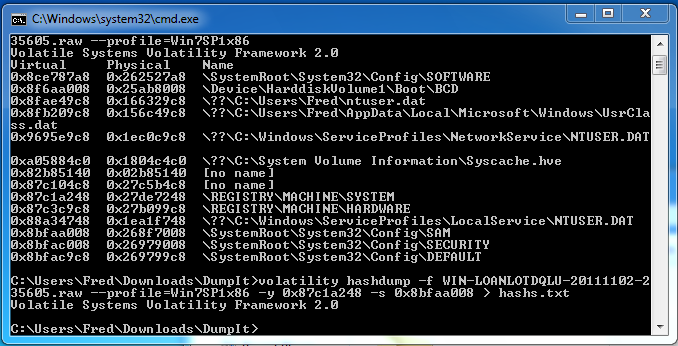
We look in the dump above and copy down the numbers in the first column that correspond to the SAM and SYSTEM locations. Then output the password hashes into a text file called hashs.txt:
volatility hashdump -f memdumpfilename.raw –profile=Win7SP1x86 -y 0x87c1a248 -s 0x8bfaa008 > hashs.txt  (double dashes in front of profile) (click image to enlarge)
image
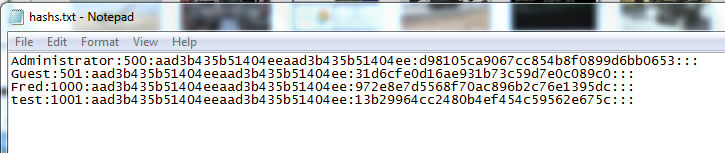
Open the hash dump file in a text editor and you should see hashes of all the user’s passwords (click image to enlarge):
image
Now, if you are using Windows XP and have passwords shorter than 14 characters (LM passwords), you can run them through a password cracker like John the Ripper.
Or better yet,  you can copy the long alphanumeric string after the user id number (500 or 1000 numbers) and paste them in Objectif Sécurité’s Online XP Hash cracking program. This utility cracks most LM based password hashes in 5 seconds or less. For more information see  Cracking 14 Character Complex Passwords in 5 Seconds.
This will not work on Windows 7 passwords or XP passwords longer than 14 characters though. These hashes are stored in the more secure NTLM format and can take a lot longer to crack. One cool thing though is that you do not need to crack the NTLM hash to get access to a system. You can log into a system using the hash itself as the password!
The password could be a simple 14 character password or a complex 32 character monster, it does not matter. You can still use the hash to get a command prompt. For more information see NTLM Passwords: Can’t Crack it? Just Pass it!
This really goes to show that passwords really are not as safe as one might think. Dual or multiple authentication systems are really the way to go on secure systems.
Well, that wraps up pulling passwords off of a memory dump, next we will learn how to view the active network connections and processes from a memory dump.
Cross-posted from Cyber Arms

Tuesday, November 15, 2011

Cracking 14 Character Complex Passwords in 5 Seconds


There has been a lot of talk recently in the security community about high speed GPU (video card) processors being able to crack passwords very quickly.
But there is a technology that can crack them even faster. A Swiss security company called Objectif Sécurité has created a cracking technology that uses rainbow tables on SSD drives.
/uploads/remoteimg/facf7aaea6b4a02aeb3e92d51c9f3fd0.jpgApparently it is the hard drive access time and not the processor speed that slows down cracking speed. So using SSD drives can make cracking faster, but just how fast?

One article in March of this year stated that the technique using SSD drives could crack passwords at a rate of 300 billion passwords a second, and could decode complex password in under 5.3 seconds.
So, how long would a long complex password hold up to the SSD based cracking technology?  
Sounds like we need to put this to the test. Most hackers will crack passwords by decoding the password hash dumps from a compromised computer.
So, I pulled several 14 character complex passwords hashes from a compromised Windows XP SP3 test machine, to see how they would stand up to Objectif’s free online XP hash cracker.
The results were stunning.
Let’s start out with an easy one. Here is the Administrator password hash from the machine:
aad3b435b51404eeaad3b435b51404ee:31d6cfe0d16ae931b73c59d7e0c089c0
And putting this into Objectif’s tool we get this response:
Password: Empty password…   
Time: 2 seconds
Administrator didn’t set a password, that’s not good…
Okay, that wasn’t 14 characters, let’s try a hard one.
How about this one:
Hash: 17817c9fbf9d272af44dfa1cb95cae33:6bcec2ba2597f089189735afeaa300d4
And the response:
Password: 72@Fee4S@mura!   
Time: 5 Seconds
Wow! that took only 5 seconds and that is a decent password.
Let’s try a few more:
Hash: ac93c8016d14e75a2e9b76bb9e8c2bb6:8516cd0838d1a4dfd1ac3e8eb9811350
Password: (689!!!<>”QTHp   
Time: 8 Seconds
Hash: d4b3b6605abec1a16a794128df6bc4da:14981697efb5db5267236c5fdbd74af6
Password: *mZ?9%^jS743:!   
Time: 5 Seconds (Try typing that in every day!)
And Finally:
Hash: 747747dc6e245f78d18aebeb7cabe1d6:43c6cc2170b7a4ef851a622ff15c6055
Password: T&p/E$v-O6,1@}   
Time: Okay, this one really pushed it to the limits, it took a whole 11 seconds to crack!
Very impressive, it took only five to eleven seconds in this test to crack 14 character complex passwords. I was able to create a password that Objectif’s site couldn’t decode; it was using characters from the extended ASII set.
But, unfortunately, I could not log into the XP system using it either.  
Want to see how a password would do without having to exploit a system and dump the password hashes?
Objectif allows you to put a password in and it will convert it for you. Then you can place the hash into the cracker and see how it does.
I believe that this demonstration shows that relying on passwords alone may no longer be a good security measure.
Many companies and government facilities are moving away from using just passwords to dual authentication methods. Biometrics and smartcards are really becoming popular in secure facilities. 
And if the rumors are true, it looks like Microsoft may include facial recognition authentication in the next version of Windows. Time to dust off the old Web Cam…
Cross-posted from CyberArms