Friday, February 13, 2015

Which Light Weight, Open Source Web Server is Right for You?

http://www.linux.com/news/software/applications/807641-which-light-weight-open-source-web-server-is-right-for-you

If you use Linux, most likely Apache is your web server of choice. Apache is a great choice. It’s incredibly powerful, very reliable, and secure. There may, however, be certain deployments that either do not need all of the features found in Apache, do not have the resources to support Apache (such as in the case of an embedded system), or need something easier to manage. If that’s the case, fear not ─ there are plenty of light weight, open source, web servers out there ready to meet and exceed your needs.
Let’s take a look at some of the best small footprint web servers available and find out which one is right for you.

nginx logoNginx

Nginx has become one of the most important web servers over the last couple of years. There’s a reason for that. Instead of using the standard threaded- or process-oriented architecture, it uses a scalable, event-driven (asynchronous) architecture. So not only is it incredibly light weight, it’s highly scalable and memory usage is far better suited for limited resource deployments. Nginx also handles simple load balancing, fault tolerance, auto-indexing, virtual servers (both name- and IP-based), mod_rewrite, access control, and much more. Nginx can also serve as a reverse proxy and an IMAP/POP3 proxy server.
Surprisingly, Nginx powers a few very high-profile sites, such as: Netflix, Hulu, Pinterest, Wordpress.com, and AirBnB.
Who is Nginx right for? The nice thing about this particular light weight HTTPD daemon is that it doesn’t perform like a lightweight server. Not only does it run with minimal resources, it offers plenty of optional modules and addons. You can find pre-built packages for Linux and BSD for easy installation. So if you need a powerhouse server, in a lighter weight package, Nginx is the server for you.
Nginx comes in at a 10 MB installation (versus the Apache 30 MB installation) and can give you up to a 35 percent performance increase (versus Apache).

Lighttpd logoLighttpd

Lighttpd is light ─ fly light in fact ─ and is the perfect server for any machine suffering from load problems. Lighttpd is also an ideal candidate for embedded systems. In fact, one of the most popular embedded systems on the market now, Raspberry Pi, is an ideal candidate for lighttpd.
Lighttpd offers effective memory management of cpu load, FastCGI, SCGI, Auth, Output-Compression, URL-Rewriting, and much more. Although Lighttpd can handle ten thousand simultaneous clients, chances are you won’t be running a massive site with this lightweight server. Lighttpd’s FastCGI can be configured to efficiently support PHP with opcode caches. This “flyweight” server also supports WebDNA (server-side scripting language with an embedded database system), so you can use lighttpd on an embedded system to create dynamic, database-driven websites.
Who is lighttpd right for? If you’re looking to create an embedded system (with far less available resources) that includes a web component, Lighttpd is most likely what you want. Lighttpd is very simple to use and set up. Configuration of this particular server is handled in a single .conf file.

monkey logoMonkey

Monkey HTTP Daemon is another web server aimed at the embedded systems market. Monkey features the likes of virtual hosts, indented configuration, plugins support, C API Interface, and HTTP/1.1. This is also another asynchronous (event-driven) web server. Monkey’s plugins aren’t nearly as extensive as other servers, but you can find additional support for: CGI, SSL, security, log writer, directory listing, and shell (command line). 
Monkey can serve as a stand-alone server for static content or, thanks to scripting languages such as PHP, Perl, Python, and Lua), it can provide a FastCGI interface to deliver dynamic content. Monkey also provides a C framework, called Duda I/O, for more sophisticated, scalable web services (such as big data, home automation, and real-time bidding markets).
The binary size of Monkey is around 100 KB on installation and around 250 KB on runtime, so it’s incredibly small. Monkey supports ARM, x86, and x64 architecture, so it’s available for multiple platforms and embedded systems.
Who is Monkey HTTP Daemon right for? Anyone needing a web server that is extremely simple to install and setup on an embedded device. For ease of use and static-content performance, Monkey is hard to beat.

cherokee logoCherokee

Cherokee is a user-friendly, lightweight, cross-platform (Linux, Mac, Solaris, BSD) web server that includes plenty of modern features. Out of the box, you’ll find Cherokee supports: FastCGI, SCGI, PHP, uWSGI, SSI, CGI, LDAP, TLS/SSL, HTTP proxying, video streaming, content caching, traffic shaping, and much more. This particular server also has a very user-friendly web-based setup tool.
Cherokee also offers a small listing of web application framework support. Included applications are: PHP, Ruby on Rails, ColdFusion, GlassFish, and Django.
There is one downfall with Cherokee ─ and this could be a deal breaker for some. The last released update was Oct. 2011. That’s seriously out of date. The server still works, but as far as getting security updates and patches ─ good luck.
Who is Cherokee right for? If you’re looking for an easy to setup and use web server that happens to be cross-platform, but aren’t concerned with using out-of-date software, Cherokee might be right for you.

hiawatha logoHiawatha

Hiawatha is a lightweight, open source web server with a focus geared toward security and ease of use. This particular light weight server isn’t designed for embedded systems, but as a fully-functioning, dynamic web server. Some of the features of this particular server include: load balancing, FastCGI, large file support, reverse proxy, chroot support, rewrite support, SSL/TLS, basie/digest HTTP authentication, IPv6 support, virtual hosting, and much more.
But what about the security? Via built-in technology, Hiawatha can stop SQL injections, XSS and CSRF attacks, control external image linking, ban potential hackers and limit the runtime of CGI applications and exploit attempts. There is also a built-in monitoring tool that allows you to keep tabs on all of your web servers.
Even with this solid feature set, Hiawatha remains an ideal option for embedded systems ─ especially those that require added security.
Who is Hiawatha right for? If you’re looking for a robust web server for either a standard setup or embedded system, and require a higher level of built-in security, Hiawatha is the server for you.
When deciding on a web server, it’s very tempting to go with the most widely used system on the planet ─ Apache. But when you have a need that Apache can’t fill, it’s good to know there are alternatives available. Be it for an embedded system, a standard server, or a test environment, open source has your web server needs covered. Give one of these systems a try and see if they don’t meet or exceed your expectations.

How to create and show a presentation from the command line on Linux

http://xmodulo.com/presentation-command-line-linux.html

When you prepare a talk for audience, the first thing that will probably come to your mind is shiny presentation charts filled with fancy diagrams, graphics and animation effects. Fine. No one can deny the power of visually charming presentation. However, not all presentations need to be Ted talk quality. Often times, the purpose of a presentation is to convey specific information, which can easily be done with textual messages. In such cases, your time can be better spent on gathering information and checking facts, rather than searching for good-looking graphics from Google Image.
In the world of Linux, you can do presentation in several different ways, e.g., Impress for multimedia-rich content, Impress.js for stunning visualization, Beamer for hardcore LaTex users, and so on. If you are looking for a simple means to create and show a textual presentation, look no further. mdp can get the job done for you.

What is Mdp?

mdp is an ncurses-based command-line presentation tool for Linux. What I like about mdp is its markdown support, which makes it easy to create slides with familiar markdown format. Naturally, it becomes painless to publish the slides in HTML format as well. Another plus is its support for UTF-8 character encoding, which comes in handy when showing non-English characters (e.g., Greek or Cyrillic alphabets).

Install Mdp on Linux

Installation of mdp is mostly painless due to its light dependency requirement (i.e., ncursesw).

Debian, Ubuntu or their derivatives

$ sudo apt-get install git gcc make libncursesw5-dev
$ git clone https://github.com/visit1985/mdp.git
$ cd mdp
$ make
$ sudo make install

Fedora or CentOS/RHEL

$ sudo yum install git gcc make ncurses-devel
$ git clone https://github.com/visit1985/mdp.git
$ cd mdp
$ make
$ sudo make install

Arch Linux

On Arch Linux, you can easily install mdp from AUR.

Create a Presentation from the Command Line

Once you installed mdp, you can easily create a presentation by using your favorite text editor. If you are familiar with markdown, it will take no time to master mdp. For those of you who are not familiar with markdown, starting with an example is the best way to learn mdp.
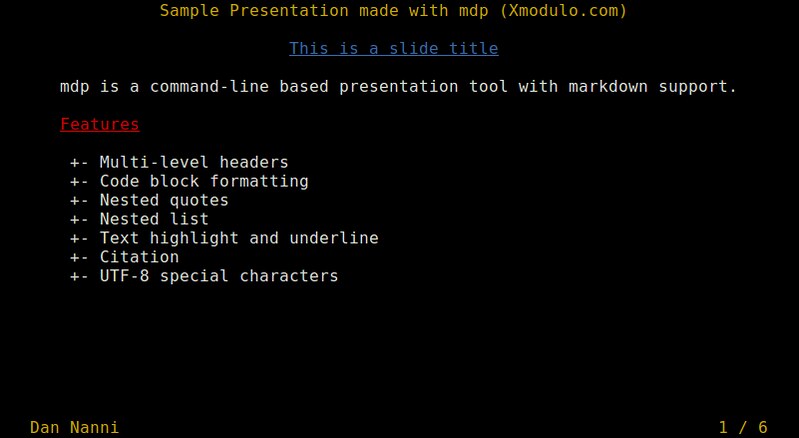
Here is a 6-page sample presentation for your reference.
1
2
3
4
5
6
7
8
9
10
11
12
13
14
15
16
17
18
19
20
21
22
23
24
25
26
27
28
29
30
31
32
33
34
35
36
37
38
39
40
41
42
43
44
45
46
47
48
49
50
51
52
53
54
55
56
57
58
59
60
61
62
63
64
65
66
67
68
69
70
71
72
73
74
75
76
77
78
79
80
81
82
83
84
85
86
87
88
89
90
91
92
93
%title: Sample Presentation made with mdp (Xmodulo.com)
%author: Dan Nanni
%date: 2015-01-28
 
-> This is a slide title <- code="">
=========
 
-> mdp is a command-line based presentation tool with markdown support. <- code="">
 
*_Features_*
 
* Multi-level headers
* Code block formatting
* Nested quotes
* Nested list
* Text highlight and underline
* Citation
* UTF-8 special characters
 
-------------------------------------------------
 
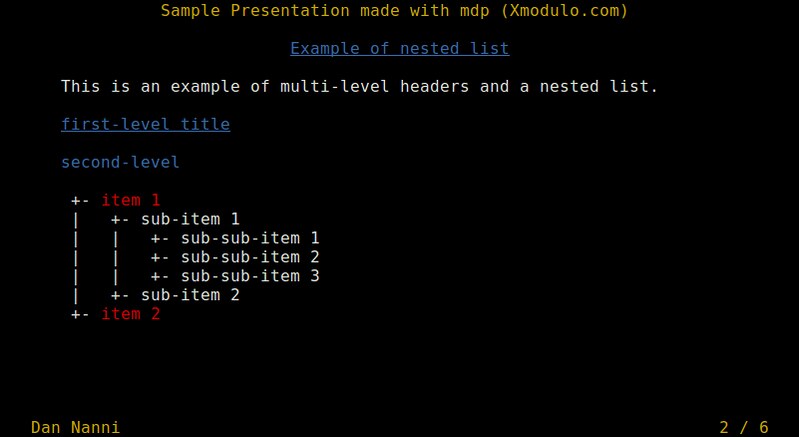
-> # Example of nested list <- code="">
 
This is an example of multi-level headers and a nested list.
 
# first-level title
 
second-level
------------
 
- *item 1*
    - sub-item 1
        - sub-sub-item 1
        - sub-sub-item 2
        - sub-sub-item 3
    - sub-item 2
 
-------------------------------------------------
 
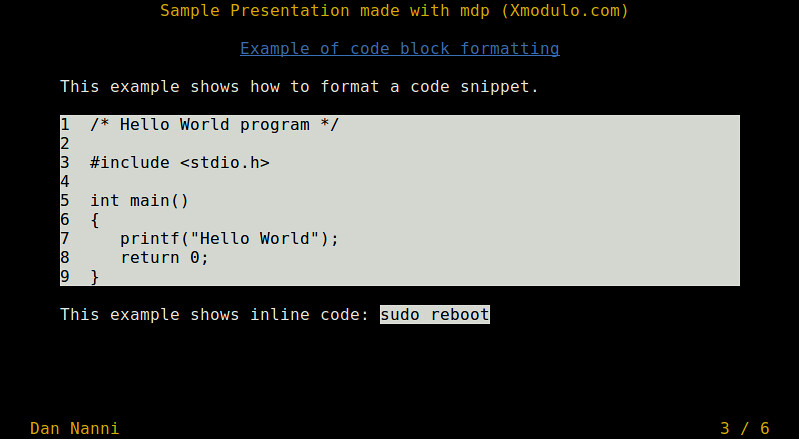
-> # Example of code block formatting <- code="">
 
This example shows how to format a code snippet.
 
    1  /* Hello World program */
    2
    3  #include
    4
    5  int main()
    6  {
    7     printf("Hello World");
    8     return 0;
    9  }
 
This example shows inline code: `sudo reboot`
 
-------------------------------------------------
 
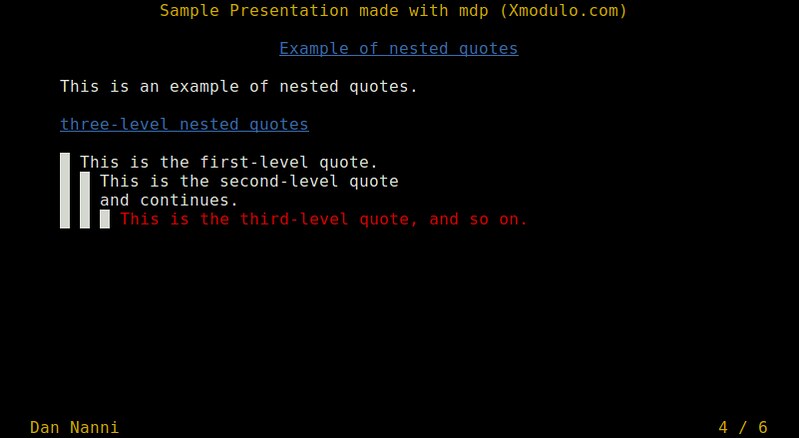
-> # Example of nested quotes <- code="">
 
This is an example of nested quotes.
 
# three-level nested quotes
 
> This is the first-level quote.
>> This is the second-level quote
>> and continues.
>>> *This is the third-level quote, and so on.*
 
-------------------------------------------------
 
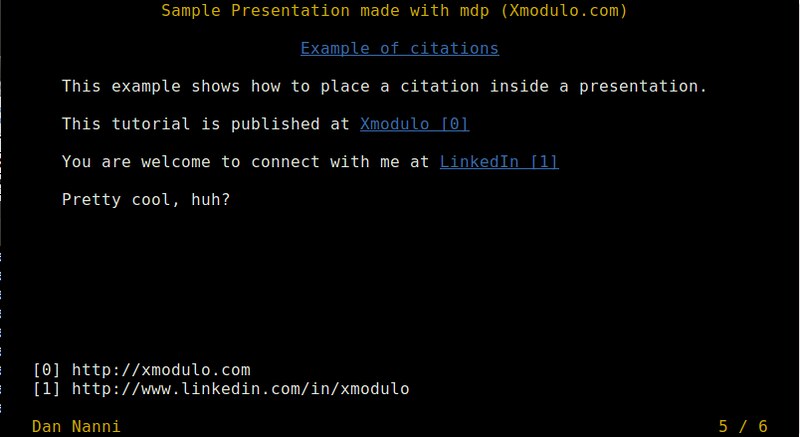
-> # Example of citations <- code="">
 
This example shows how to place a citation inside a presentation.
 
This tutorial is published at [Xmodulo](http://xmodulo.com)
 
You are welcome to connect with me at [LinkedIn](http://www.linkedin.com/in/xmodulo)
 
Pretty cool, huh?
 
-------------------------------------------------
 
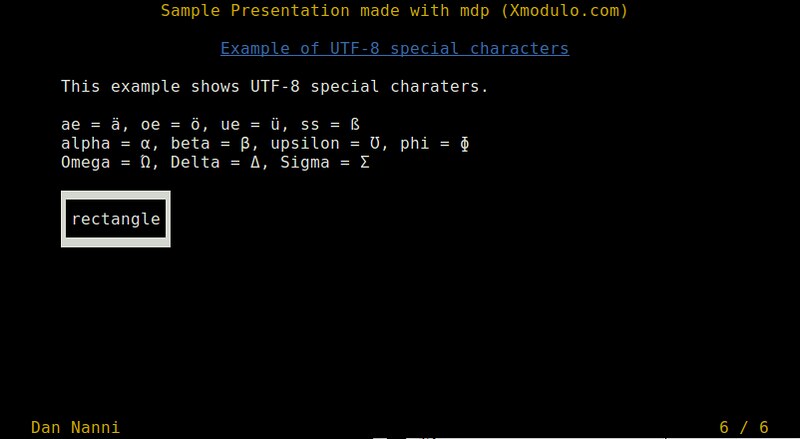
-> # Example of UTF-8 special characters <- code="">
 
This example shows UTF-8 special characters.
 
ae = ä, oe = ö, ue = ü, ss = ß
alpha = ?, beta = ?, upsilon = ?, phi = ?
Omega = ?, Delta = ?, Sigma = ?
 
???????????
?rectangle?
???????????

Show a Presentation from the Command Line

Once you save the above code as slide.md text file, you can show the presentation by simply running:
$ mdp slide.md
You can navigate the presentation by pressing Enter/Space/Page-Down/Down-Arrow (next slide), Backspace/Page-Up/Up-Arrow (previous slide), Home (first slide), End (last slide), or numeric-N (N-th slide).
The title of the presentation appears on top of each slide, and your name and page number are shown at the bottom.

This is an example of a nested list and multi-level headers.

This is an example of a code snippet and inline code.

This is an example of nested quotes.

This is an example of placing citations.

This is an example of UTF-8 special characters.

Summary

In this tutorial, I showed you how to use mdp to create and show a presentation from the command line. Its markdown compatibility saves us the trouble and hassle of having to learn any new formatting, which is an advantage compared to tpp, another command-line presentation tool. Due to its limitations, mdp may not qualify as your default presentation tool, but there should be definitely a use case for that. What do you think of mdp? Do you prefer something else?

Startup Applications: automatic execution of the most used programs during every user login

https://www.howtoforge.com/tutorial/how-to-use-startup-applications-on-ubuntu

During every login or bootup, the OS performs a number of tasks in the background to get the OS up and running and ready to be used. Customizations in Linux OS like Ubuntu can be done very easily, that allows an user to add any number of "custom" tasks or programs to the system to be performed every time the user logs in or boots up the OS.
We can choose a certain number of tasks to be automated, thereby reducing the repetitive work of the user to quite an extent. The tasks that can be automated include running a certain program like a custom system check that the user might want to view, or to run applications like the web browser with certain predefined websites. Or it can be automating system control programs that needs to be run during each bootup or even login. Ubuntu allows us to do these kind of automation in a very simple manner, by providing us a GUI based software called the "Startup Applications".
Though this may provide a lot of convenience, it is important to remember not to overuse this feature. Users might face problems when a large number of tasks are provided or selected to be automated. The main problem this leads to is slowing down your system at startup. Hence, it is very important for the user to NOT over utilise this functionality and only automate the most required or used tasks.
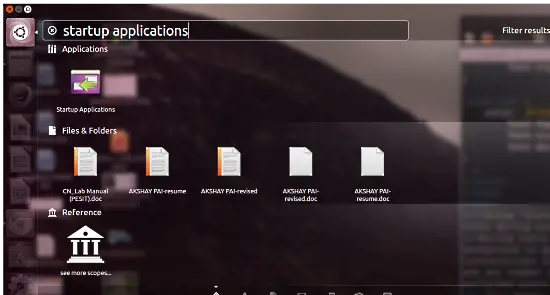
So let's begin. First thing to do is to open the Startup Applications. To do so, in the desktop Dash, type
Startup Applications
as shown in the image below.
Ubuntu Desktop - Startup applications
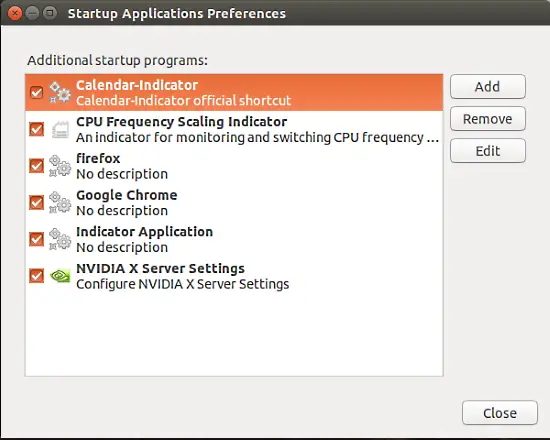
Click on the "Startup Applications" icon, and the Startup Applications window opens. It will look similar to the image below. Note that you might have a different set of entries in your window than the ones that can be seen in the image below.
Startup applications preferences
Once this is open, we can start with the automation of tasks. This posts will demonstrate some of the tasks, but many other tasks that are important to you can be added the same way. So here are a few examples

1 Starting a browser with a predefined web page

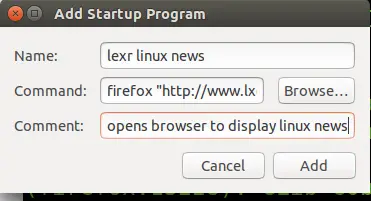
Every build of Ubuntu comes with Firefox inbuilt. We can use that to open websites that we check regularly. For example, I like to read Linux news, from the website "lxer.com". To open this website every time, click on the add button present on the upper right side of the Startup Applications window.
Another window opens. In the new window, type the following in the command field:
Firefox "http://www.lxer.com"
Fill out the name as well and use the comment field to describe your new task. An example is shown in the image below. Once that is done, click on the "Add" button and you will see an entry named "lexr Linux news" (in this case) in the Startup Applications window.
Add startup program
This way, a browser can be opened automatically with any website or search query. For example, if the first thing you do is view the trade stock market, then you can click "Add" and enter the command to go directly to a trade website. Example:
Firefox "NASDAQ"

2 Running system management functions automatically

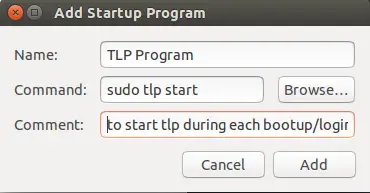
Certain system management functions or programs require to be started each time a user logs in. Consider the situation of system overheating experienced by many Ubuntu users. In this case, most of the users install a software called "TLP". And in many cases, TLP doesn't always start on its own automatically. In such a case, rather than to run it manually each time, the Startup Applications can be used to run it automatically, by following the similar steps. So, click on the "Add" button and use the following command in the command field:
sudo tlp start
For the name and the comment field, refer to the image below:
sudo tlp start
Unlike the first example, this example of TLP , the program is started in the background and not visible to the user. Thus in this way, a user can start a variety of background processes automatically that relate to system management functions.

3 Starting system monitoring programs

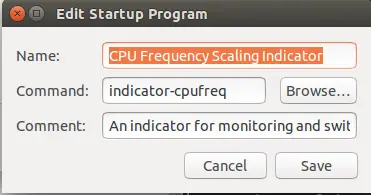
System monitoring programs are those that monitor and report the various functionalities of the system. An example can be a program to monitor the broadband bandwidth consumption or a custom program written by you to monitor system features like heat of the cpu or cpu utilisation ,etc. These programs are actually running in the background, but unlike the previous example of TLP type of programs, it can be brought to the foreground by either using icons on the top taskbar or an icon on the side taskbar. This too has a similar procedure as the two procedures above. So, click on the "Add" button of the Startup Applications and enter the commands to run it. An example would be the program to monitor cpu frequency and scaling tool. The image below shows an example. The user is also allowed to enter options along with commands.
Edit startup program

4 Editing and removing an automated task

There will be times when an automated task might no longer be needed or you might want to change the website that is loaded. In such cases, you would want to edit or remove the task. There might be situations when you have installed a program that automatically starts by itself and whose entry then can be found in the startup application window. Even that can be removed or edited.
  • To edit a task, simply select on the task to be edited and click on the "Edit" button on the right side of the Startup Applications window. Do the changes in the window that opens.
  • To remove a task, select the task to be removed and click on the "Remove" button. Please note that some of the edited or removed tasks might require a reboot to apply the changes.

Conclusion

We have seen how we can automate many of the user defined tasks to make our job a little bit simpler. The tasks might belong to one of the types shown above or it can be something completely different, but it can be assured that if it is repetitive, it can be automated. The Startup Applications are indeed useful when it comes to running multiple tasks. Still consider that this feature should not be exploited by using it excessively.