http://xmodulo.com/document-centric-apps-concurrent-tasks-android.html
Android L introduced a great new feature: the ability for a single app to have multiple tasks available on the 'Recent Apps' list. This is called Document Centric apps (Concurrent Tasks). In fact, this feature is a rather significant change in multitasking model in Android L, where focus has been shifted from traditional app-centric multitasking to document-centric multitasking.
This easily makes sense for some apps. A prime example is web browsers with tabs. Each tab can be a task, and the user switches tabs the same way he switches apps. In addition, apps where the user has to switch back to a central activity (such as shopping apps) can benefit from this. The checkout activity can be a task of its own, or the user can open multiple shopping items and switch between them till finally making a choice.
In this tutorial, we discuss how to do this correctly with the Android L APIs. Note that the techniques discussed here apply to Android Lollipop (API 21) devices only.
Another new, but highly overlooked, Lollipop feature is the ability for apps to be persisted across device reboots. Previously, after a reboot, all apps are cleared from the Recent Apps list. But with Lollipop, after a reboot, all the apps that were previously opened remain opened, and available via the Recent Apps list. Android L also gives app developers power to determine if and how their apps (and concurrent tasks spurned) should be available on reboot.
Note that if your app targets older versions, be sure to add the standard check for device version around all of the code in this tutorial as follows.
With the above code, ActivityB will be started in a task of its own, available via the Recent Apps list. You can switch between ActivityA and ActivityB by tapping the Recent Apps button. The issue with the above code is that there can only be one instance of ActivityB. Triggering the startActivity() function again will re-open the same running ActivityB instance.
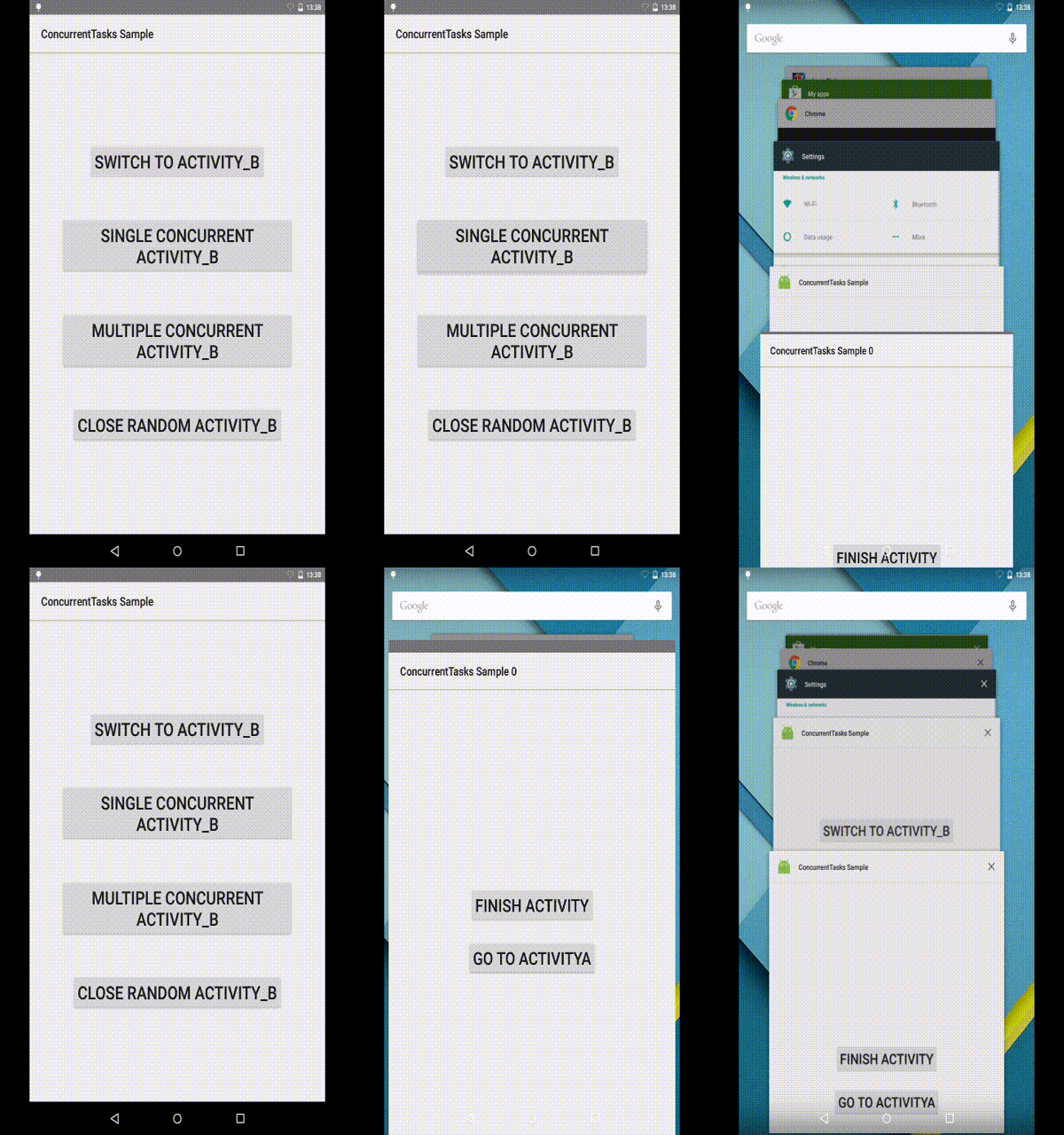
To run multiple instances of ActivityB is not much difficult though. We simply add another API 21 flag (Intent.FLAG_ACTIVITY_MULTIPLE_TASK)
Voila! Multiple ActivityB instances can now run at the same time. This then introduces a new issue. How do you keep track of the tasks opened? How do you know how many ActivityB instances are running? And if ActivityA also opens an ActivityC with both NEW_DOCUMENT and MULTIPLE_TASK flags, how do you manage them all?
A method of keeping track of opened tasks and activities is to use Intent's putExtra() method which puts an identifier in each opened task.
To get a list of tasks, we get the System's ActivityManager instance, and query getAppTasks(). This returns a list of all tasks associated with the current activity. In the snippet below, we get our app's task list, query each task for its base Intent, and identify the Activity using the getIntExtra() with KEY_EXTRA_NEW_DOCUMENT_COUNTER.
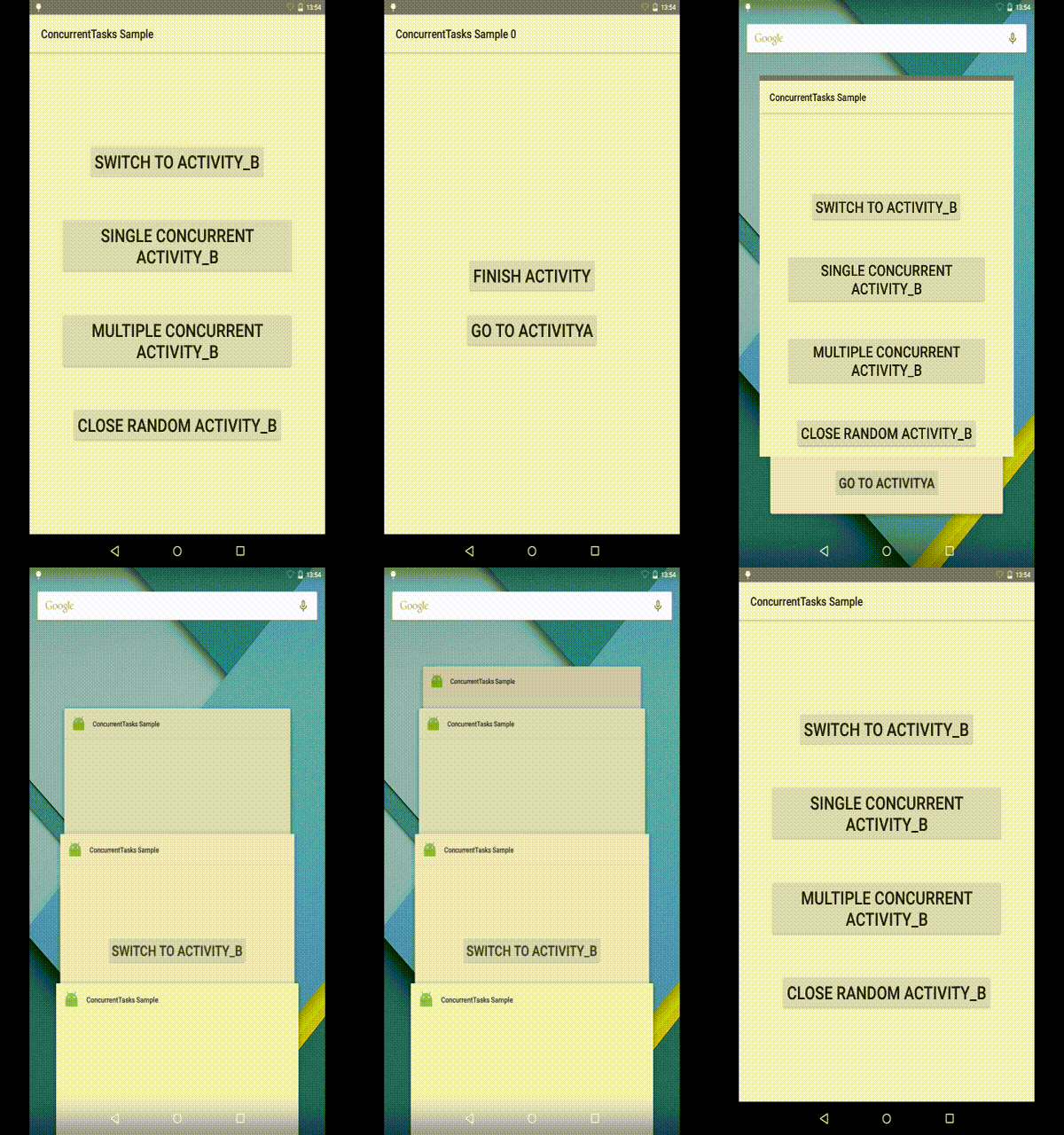
Since your app tasks are now scattered among all tasks from all other apps, it would be nice, for users, if they can close other tasks from the root task, and jump back to the root task with a single tap.
Thankfully, the APIs contain methods for that.
For example, to finish a particular task, given that we track the tasks with KEY_EXTRA_NEW_DOCUMENT_COUNTER:
The preferred and correct way to end a task is by calling finishAndRemoveTask(). Activity also has a similarly named finishAndRemoveTask() method (introduced in API 21), so, the correct way to close an Activity in a new task is to call finishAndRemoveTask(), rather than just finish().
To jump back to the root activity, make sure to add the flag (Intent.FLAG_ACTIVITY_NEW_DOCUMENT) before the startActivity() method. Recall that doing this simply switches to an already opened/running task for that activity.
The persistableMode attribute was added in API 21 (http://developer.android.com/reference/android/R.attr.html#persistableMode). This attribute allows three possible states:
Whereas, to restore state after a reboot, override onPostCreate()
As usual, all tips discussed above are implemented in a sample app, and the entire source code is available on Github. Feel free to use and modify as required.
Android L introduced a great new feature: the ability for a single app to have multiple tasks available on the 'Recent Apps' list. This is called Document Centric apps (Concurrent Tasks). In fact, this feature is a rather significant change in multitasking model in Android L, where focus has been shifted from traditional app-centric multitasking to document-centric multitasking.
This easily makes sense for some apps. A prime example is web browsers with tabs. Each tab can be a task, and the user switches tabs the same way he switches apps. In addition, apps where the user has to switch back to a central activity (such as shopping apps) can benefit from this. The checkout activity can be a task of its own, or the user can open multiple shopping items and switch between them till finally making a choice.
In this tutorial, we discuss how to do this correctly with the Android L APIs. Note that the techniques discussed here apply to Android Lollipop (API 21) devices only.
Preparation
With Android Lollipop the default software buttons are now back, home and recent tasks. Obviously, this is not just an aesthetic design choice. With the new ability of a single app to spurn multiple tasks, the Recent Apps list should be more frequently used.Another new, but highly overlooked, Lollipop feature is the ability for apps to be persisted across device reboots. Previously, after a reboot, all apps are cleared from the Recent Apps list. But with Lollipop, after a reboot, all the apps that were previously opened remain opened, and available via the Recent Apps list. Android L also gives app developers power to determine if and how their apps (and concurrent tasks spurned) should be available on reboot.
Note that if your app targets older versions, be sure to add the standard check for device version around all of the code in this tutorial as follows.
1
2
3
4
5
| if (android.os.Build.VERSION.SDK_INT >= android.os.Build.VERSION_CODES.LOLLIPOP){ // Lollipop and above devices} else{ // Devices before Lollipop} |
Implementation
Taking advantage of concurrent tasks is actually pretty straightforward. You add an API 21 flag (Intent.FLAG_ACTIVITY_NEW_DOCUMENT) to the new Activity Intent. Calling startActivity() on an Intent with this flag starts the target activity in a task of its own.
1
2
3
| Intent intent = new Intent(this, ActivityB.class);intent.addFlags(Intent.FLAG_ACTIVITY_NEW_DOCUMENT);startActivity(intent); |
With the above code, ActivityB will be started in a task of its own, available via the Recent Apps list. You can switch between ActivityA and ActivityB by tapping the Recent Apps button. The issue with the above code is that there can only be one instance of ActivityB. Triggering the startActivity() function again will re-open the same running ActivityB instance.
To run multiple instances of ActivityB is not much difficult though. We simply add another API 21 flag (Intent.FLAG_ACTIVITY_MULTIPLE_TASK)
1
2
3
4
| Intent intent = new Intent(this, ActivityB.class);intent.addFlags(Intent.FLAG_ACTIVITY_NEW_DOCUMENT);intent.addFlags(Intent.FLAG_ACTIVITY_MULTIPLE_TASK);startActivity(intent); |
Voila! Multiple ActivityB instances can now run at the same time. This then introduces a new issue. How do you keep track of the tasks opened? How do you know how many ActivityB instances are running? And if ActivityA also opens an ActivityC with both NEW_DOCUMENT and MULTIPLE_TASK flags, how do you manage them all?
A method of keeping track of opened tasks and activities is to use Intent's putExtra() method which puts an identifier in each opened task.
1
2
3
4
5
| Intent intent = new Intent(this, ActivityB.class);intent.addFlags(Intent.FLAG_ACTIVITY_NEW_DOCUMENT);intent.addFlags(Intent.FLAG_ACTIVITY_MULTIPLE_TASK);intent.putExtra(KEY_EXTRA_NEW_DOCUMENT_COUNTER, ++NEW_DOCUMENT_COUNTER);startActivity(intent); |
To get a list of tasks, we get the System's ActivityManager instance, and query getAppTasks(). This returns a list of all tasks associated with the current activity. In the snippet below, we get our app's task list, query each task for its base Intent, and identify the Activity using the getIntExtra() with KEY_EXTRA_NEW_DOCUMENT_COUNTER.
1
2
3
4
5
6
7
8
| ActivityManager manager = (ActivityManager) getSystemService(Context.ACTIVITY_SERVICE);Listint counter = 1;for(ActivityManager.AppTask task : myTasks) { Intent baseIntent = task.getTaskInfo().baseIntent; Log.e("TASK " + counter++, baseIntent.getIntExtra(KEY_EXTRA_NEW_DOCUMENT_COUNTER, -1) + "");} |
Since your app tasks are now scattered among all tasks from all other apps, it would be nice, for users, if they can close other tasks from the root task, and jump back to the root task with a single tap.
Thankfully, the APIs contain methods for that.
For example, to finish a particular task, given that we track the tasks with KEY_EXTRA_NEW_DOCUMENT_COUNTER:
1
2
3
4
5
6
7
| ActivityManager manager = (ActivityManager) getSystemService(Context.ACTIVITY_SERVICE);Listfor(ActivityManager.AppTask task : myTasks) { Intent baseIntent = task.getTaskInfo().baseIntent; if(baseIntent.getIntExtra(KEY_EXTRA_NEW_DOCUMENT_COUNTER, -1) == 3) task.finishAndRemoveTask();} |
The preferred and correct way to end a task is by calling finishAndRemoveTask(). Activity also has a similarly named finishAndRemoveTask() method (introduced in API 21), so, the correct way to close an Activity in a new task is to call finishAndRemoveTask(), rather than just finish().
To jump back to the root activity, make sure to add the flag (Intent.FLAG_ACTIVITY_NEW_DOCUMENT) before the startActivity() method. Recall that doing this simply switches to an already opened/running task for that activity.
Persist on Reboot
To persist your tasks across reboots, add this to your activity in the AndroidManifest.xml file:
1
| android:persistableMode="persistAcrossReboots" |
The persistableMode attribute was added in API 21 (http://developer.android.com/reference/android/R.attr.html#persistableMode). This attribute allows three possible states:
- persistRootOnly - The default, and it persists only the root activity/task. The root activity/task will not be passed a PersistableBundle to store its state.
- persistNever - This state indicates that the task/activity should not be persisted.
- persistAcrossReboots - Activities with this attribute will be provided a PersistableBundle in the new, overloaded, onSaveInstanceState() method. This PersistableBundle will then be provided back to the Activity in its onPostCreate() method.
1
2
3
4
5
| @Override public void onSaveInstanceState(Bundle outState, PersistableBundle outPersistentState) { // Save data to PersistableBundle super.onSaveInstanceState(outState, outPersistentState); } |
Whereas, to restore state after a reboot, override onPostCreate()
1
2
3
4
5
6
7
8
| @Override public void onPostCreate(Bundle savedInstanceState, PersistableBundle persistentState) { super.onPostCreate(savedInstanceState, persistentState); // Restore state from PersistableBundle if (persistentState != null) { // Read relevant data } } |
Conclusion
While these new APIs provide some possibly exciting uses, there is the potential for misuse, especially with Recent Apps persisting across reboots. Bear in mind that having your app dominating a user's Recent Apps list is possibly going to be annoying. Consider implementing an obvious way for the user to see all tasks for your app, and to selectively close some. Also consider implementing a one touch method to switch to your root task from all other tasks.As usual, all tips discussed above are implemented in a sample app, and the entire source code is available on Github. Feel free to use and modify as required.