dialog - display dialog boxes from shell scripts.
'dialog' is a utility for building console-based 'front ends' in UNIX like operating systems.
In this brief tutorial I am mentioning the usage of few important basic controls available with this 'dialog' utility and later I have created a very simple front end application in UNIX bash scripting using dialog.
To install 'dialog' on your ubuntu:
$ apt-get install dialog
Box options available with dialog: (Do a 'man' of dialog to know the usage of each control box)
--calendar
--checklist
--dselect
--editbox
--form
--fselect
--gauge
--infobox
--inputbox
--inputmenu
--menu
--mixedform
--mixedgauge
--msgbox
--passwordbox
--passwordform
--pause
--progressbox
--radiolist
--tailbox
--tailboxbg
--textbox
--timebox
--yesno
Checklist box:
A checklist box allows you to present a set of choices to the user and the user can toggle each one on or off individually using the space bar.
A sample one:
$ dialog --checklist "Choose OS:" 15 40 5 \
1 Linux off \
2 Solaris on \
3 'HP UX' off \
4 AIX off
 Radiolist box:
The 'radiolist' control box is same as 'checklist' box.
$ dialog --backtitle "OS infomration" \
--radiolist "Select OS:" 10 40 3 \
 1 "Linux 7.2" off \
 2 "Solaris 9" on \
 3 "HPUX 11i" off
 Inputbox:
The 'inputbox' allows the user to enter a string.
$ dialog --title "Inputbox - Example" \
--backtitle "unstableme.blogspot.com" \
--inputbox "Enter your favourite OS here" 8 50
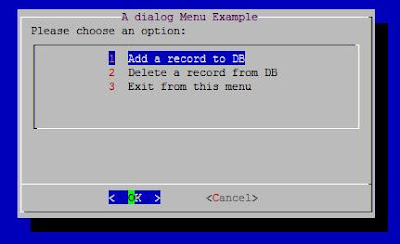
 Menu box:
$ dialog --title "A dialog Menu Example" \
--menu "Please choose an option:" 15 55 5 \
1 "Add a record to DB" \
2 "Delete a record from DB" \
3 "Exit from this menu"
 A message-box:
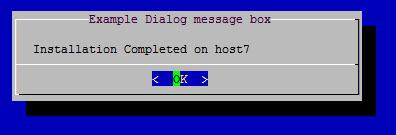
$ dialog --title "Example Dialog message box" \
--msgbox "\n Installation Completed on host7" 6 50
 A yesno box:
$ dialog --title "Confirmation" --yesno "Want to quit?" 6 20
 Infobox:
$ dialog --infobox "Processing, please wait" 3 34 ; sleep 5
 Textbox:
It is a simple file viewer
$ dialog --textbox ~/work/conf.txt 10 4

From the sample application I have created at the end of this post, you will easily learn how to program these dialog boxes i.e. how to capture what user has entered/pressed.
The dialog program writes its output to the standard error by default. In most of the dialog controls we redirect the choice user has selected to a tempfile and then process return value of dialog and contents of the tempfile.
Gauge Box:
#!/bin/sh
#A gauge Box example with dialog
(
c=10
while [ $c -ne 110 ]
    do
        echo $c
        echo "###"
        echo "$c %"
        echo "###"
        ((c+=10))
        sleep 1
done
) |
dialog --title "A Test Gauge With dialog" --gauge "Please wait ...." 10 60 0
 Calendar Box:
#!/bin/sh

dat=$(dialog --stdout --title "My Calendar" \
                   --calendar "Select a date:" 0 0 25 12 2009)

case $? in
0)
 echo "You have entered: $dat"   ;;
1)
 echo "You have pressed Cancel"  ;;
255)
 echo "Box closed"   ;;
esac
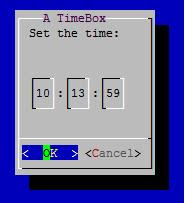
 Time Box:
#!/bin/sh

tim=$(dialog --stdout --title "A TimeBox" \
                    --timebox "Set the time:" 0 0 10 13 59)

case $? in
0)
  echo "You have set: $tim"   ;;
1)
  echo "You have pressed Cancel"  ;;
255)
  echo "Box closed"   ;;
esac
 A sample application:
Suppose:
$ cat /home/user9/work/conf.txt
port:3322
threads:2
logdir:/opt/user6/logs/
confdir:/opt/user6/etc/
The following bash script using dialog utility will facilitate a simple interface to view or edit the content of the above config file.
#!/bin/sh
#http://unstableme.blogspot.com/
#A sample application using UNIX/Linux dialog utility
#Auto-size with height and width = 0 of the dialog controls

file='/home/user9/work/conf.txt'
tempfile1=/tmp/dialog_1_$$
tempfile2=/tmp/dialog_2_$$
tempfile3=/tmp/dialog_3_$$

trap "rm -f $tempfile1 $tempfile2 $tempfile3" 0 1 2 5 15

_edit () {
   items=$(awk -F\: '{print $1,$2}' $file)
   dialog --title "A Sample Application" \
          --menu "What you want to change :" 0 0 0 $items 2> $tempfile1

   retval=$?
   parameter=$(cat $tempfile1)

   [ $retval -eq 0 ] && tochange=$parameter || return 1

   val=$(awk -F\: -v x=$tochange '$1==x {print $2}' $file)
   dialog --clear --title "Inputbox - Test" \
          --inputbox "Enter new value($tochange)" 0 0 $val 2> $tempfile2

   dialog --title "Confirmation"  --yesno "Commit ?" 0 0
   case $? in
       0) newval=$(cat $tempfile2)
          awk -v x=$tochange -v n=$newval '
               BEGIN {FS=OFS=":"}$1==x {$2=n} {print}
               ' $file > $file.tmp
          mv $file.tmp $file
       ;;
       1|255) dialog --infobox "No Changes done" 0 0
              sleep 2
   ;;
   esac
   dialog --textbox $file 0 0
}

_main () {
   dialog --title "A sample application" \
           --menu "Please choose an option:" 15 55 5 \
                   1 "View the config file" \
                   2 "Edit config file" \
                   3 "Exit from this menu" 2> $tempfile3

   retv=$?
   choice=$(cat $tempfile3)
   [ $retv -eq 1 -o $retv -eq 255 ] && exit

   case $choice in
       1) dialog --textbox $file 0 0
          _main
           ;;
       2) _edit
          _main ;;
       3) exit ;;
   esac
}

_main
Dialog utility home page